

Introduction
Last updated on 2026-09-29 | Edit this page
Estimated time: 12 minutes
Overview
Questions
- Who else is doing this course?
- What can you expect from this course?
- How do I use the command line?
- How can I edit files at the command line?
Objectives
- Find out something interesting about other participants.
- Understand the way in which you are expected to behave and interact with other participants.
- Have an overview of the content and material that will be covered.
- Basic command line navigation.
- Basic use of
nanoeditor. - Pair up with another participant to collaborate with during this workshop.
Git is, in 2025, the most widely used version control system by far. It was developed by Linus Torvalds to manage Linux kernel development and since then has exploded. Websites such as GitHub and GitLab, both types of Forge1, facilitate asynchronous collaboration on common code bases and underpin many, many software projects from enterprise grade such as the increasingly popular language Rust through to niche products such as Snapcast or Android apps for tracking your exercise such as OpenTracks2.
Git and Forges are wonderful tools for collaboration. However, because of the complexities of version controlling software in distributed, collaborative environments the tool itself, Git, has become quite complex. There are many different tasks that one may wish to undertake and often several different ways of achieving these.
It’s relatively easy to get the hang of the basics of working with Git on your own or with small groups to work collaboratively on code development. If you aren’t already familiar with these basics then this course isn’t for you (yet!) and you would benefit from an introductory course such as Git, GitHub through GitKraken : From Zero to Hero! or the Software Carpentry : Version Control with Git. This course aims to show you some of the more involved ways to use Git in a collaborative environment.
Most of the ways in which collaboration can be eased is through a better understanding of how Git works and by maintaining clean and focused commits which make the task of reviewing work easier for those you are collaborating with (which often includes your self).
Code of Conduct
To make clear what is expected, everyone participating in the activities is required to abide by a Code of Conduct. Any form of behaviour to exclude, intimidate, or cause discomfort is a violation of the Code of Conduct. In order to foster a positive and professional learning environment we encourage you to:
- Use welcoming and inclusive language
- Be respectful of different viewpoints and experiences
- Gracefully accept constructive criticism
- Focus on what is best for the community
- Show courtesy and respect towards other community members
If you believe someone is violating the Code of Conduct, we ask that you bring it to the attention of a course instructor.
Icebreaker
Collaboration
Since this course is all about collaboration we would like you now to pair up with another participant in order to undertake the exercises contained in this course. This could be the person sitting next to you if this is an in-person course or if the course is online one of the instructors will pair you up at random.
Once paired up please add details to the Collaborative Notepad along with your GitHub usernames.
Pair Programming
The aim of pairing up is not to divide the tasks between people. There are a few exceptions but for most tasks you should work with your partner to solve each of the challenges, but with one person at the “driving seat” making the changes to the code as required (and you should take it in turns to do the “driving”).
You should discuss what you think the solution should be as you work through the challenges.
This is a software development technique known as Pair Programming and by discussing the solutions you will hopefully come away with a better understanding of the material.
Getting to Know Each Other
In order to break the ice and find out something about the other participants on this course, please think about a situation BVC (Before Version Control) where you might have had a problem that Version Control would have prevented. This might be deleting files by mistake or making changes to code that broke your programme and not being unable to undo them. Alternatively you could describe a mistake you’ve made AVC (After Version Control) where you perhaps committed to the wrong branch or deleted something.
If the course is being run in person please describe the situation to the person or people sat next to you. Write your answer in the collaborative pad under a heading with your name.
If you are participating online please write down your names of pairs and provide an answer in the collaborative notepad.
Before the start of the course you should setup the collaborative pad where participants can answer questions and collaborate.
If running the course online you should have a list of participants and have paired them off at random.
When explaining the challenge remember to let participants know that they can use these pages to work through the steps, this is particularly important for those who are not overly familiar with Python.
Once people have completed the task ask for volunteers to describe their experiences BVC.
If anyone has multiple GitHub accounts it is possible that permission
may be denied when pushing if the wrong SSH key is used. It is simple to
work around this by adding the following to the .git/config
of the user and ensuring it points to the correct private SSH key that
is associated with the account they wish to use.
The important part is that it points to the correct SSH key, in the
above this is ~/.ssh/id_ed25519 which will need modifying
to reflect the users key for the account they wish to use.
An alternative is to make sure you have configured Git globally to includeIf
Bash and Nano Basics
You will be using the Bash shell to navigate and type commands and the nano editor to edit files, although you are free to edit your files in any programme you want such as VSCode, RStudio or Emacs.
Windows Explorer
If you are using Windows Explorer and the recommended Git
for Windows then you may find that copying and pasting directory
paths does not work. This is because natively Microsoft Windows uses
\ (back-slash) to separate directory names whilst all other
operating systems use / (forward-slash). You will have to
replace these when copy and pasting directory paths from Windows
Explorer
Bash
There are a few useful tips and tricks you can use to help you work at the command line more quickly.
Navigation
You can find out what directory you are in using pwd
(present working directory).
You can use cd to (change
directory).
NB The tilde (~) is a short-cut for
your “home” directory, typically /home/<username> on
GNU/Linux systems, /Users/<username> on OSX and
/c/Users/<username> on Window systems.
You can create directories with mkdir
(make directory), the
-p flag ensures the parent directories exist.
Tab Completion
You can start typing a command or directory path in Bash and use the
<Tab> button to auto-complete the word you are
typing. If you have typed sufficient characters to give a unique command
or path Bash will complete it for you. If there are several options you
will be presented with a list of the options, one of which will be
highlighted. Hitting <Tab> again will move onto the
next possible completion. When you are at the completion you want simply
hit <Return> and it will be entered on your command
line.
Redirection
This course uses the redirection pipes > to “pipe”
what is on the left of the symbol into the file given on the right side.
A single > will over-write any contents in the file if
it already exists. If you want to append something to a file you can use
>> instead.
History
Bash keeps a record of the commands you use in its
history. You can view all your history by simply
typing history.
BASH
history
...
cd work
mkdir git
git clone git@github.com:FAIR2-for-research-software/python-maths
You can recall previous commands using the Ctrl + p or
the Up arrow, each press takes you to the previous command
in the history. You can move forwards to the next command
using Ctrl + n or the Down arrow. When you get to the
command you want simply hit Return to execute it.
This is really useful but what if there is a command you know you’ve
used at some point in the past but it wasn’t recently? It could take a
long time going back through the history one command at a time.
Fortunately you can search your history for a command using
Ctrl + r to carry out a “reverse search” on the term you
enter. Each subsequent press of Ctrl + r will go the
previous match.
Readline Library
There are a lot of useful key chords that have evolved over the years which make navigating on the command line easier and faster. They have been collected into the Readline library.
These are available not just in Bash but many other command line interfaces (CLI) and learning them will make you quicker when working at the command line. A useful cheatsheet is available.
Nano
Nano is a basic terminal
editor, you open files by calling
nano <path/to/filename>, there is a useful nano
cheatsheet.
Navigating
You can jump to a specific line number with Ctrl + / and
will be prompted for the line you want to go to, on hitting
Return the cursor will move there.
Finding text
If you want to search for some text you can do so with
Ctrl + F and you are prompted to enter some text, on
hitting Return the cursor moves to the next instance of
that text (if it is present!). If you hit Ctrl + F again
you can either enter new text to search for or you can hit
Return to search for the previous text again.
Saving Files
When you are done editing use Ctrl + O to save the file
you are editing, you are prompted for a file to save it to, typically
you don’t need to change this, just hit Enter.
Exiting nano
When done editing you need to exit and return to the command line,
you do this with Ctrl + x. If you have unsaved changes a
prompt will appear asking if you want to save them.
Useful alias
You may want to set the following alias in your
~/.bashrc file, it sets various options. You can then
source ~/.bashrc to
These options will be used whenever you use nano. You
can alternatively place these configuration options in
$XDG_CONFIG_HOME/nano/nanorc. See more options and
information on configuration with nano --help.
Git Configuration
Git configuration comes in two forms, “global” and “local” and is courtesy of some simple text files.
Global Configuration
The global configuration file lives in your home directory, where this is depends on your operating system.
- GNU/Linux -
~/.gitconfigor$XDG_CONFIG_HOME/git/config(typically$XDG_CONFIG_HOMEis~/.config/) - OSX -
~/.gitconfigor~/Library/Preferences/ - Windows -
C:\Users\<username>\.gitconfig
If the global configuration file doesn’t exist when you first try to
use git at the command line you will have been were
prompted for your name and email address.
Local Configuration
Each repository that is under Git version control has a
.git/ directory where all of the configuration, hooks and
history live. Within this directory you will find a
.git/config file which is the “local” configuration for
that repository. Configuration options defined locally over-ride
global configuration options.
There are two ways of modifying either the global or local
configuration, using the Command Line
git config <options> or by editing either the global
(~/.gitconfig) or local (git/config)
files.
git config
The git config command has a host of options that you
can view with the --help flag. The first required option
says what file should be modified and is typically either
global or local. You can view the
configuration with git config --list and you can optionally
restrict it to show either the --global or
--local configuration.
Adding values requires a bit of understanding about the structure of the configuration file, a very simple example is shown below.
BASH
[user]
 email = a.n.other@sheffield.ac.uk
 name = A N Other
[core]
 editor = nano
 sshCommand = ssh -i ~/.ssh/id_ed25519 -F /dev/null
 attributesFile = $HOME/.gitattributes
 autocrlf = input
 excludesFile = ~/.config/git/.gitignore
Sections are in square brackets with names, e.g. [user]
or [core]. Fields then have key and value pairs e.g. the
name value is set to A N Other the
email address is a.n.other@sheffield.ac.uk and
the editor is set to nano and so forth.
To modify values at the command line you need to know the section and
the key you want to change, these are combined to give the third
argument user.email and you then provide the value you want
it to be as the fourth argument. For example to change the email address
in the global configuration you would.
Editing config files
You can also edit both the local (.git/config) and
global (~/.gitconfig / ~/.config/git/config)
files directly to set configuration options and this can at times be
much quicker.
For example if we wanted to configure Git so that the order in which
branches are listed is by the most recent commit we could add the
following to our ~/.gitconfig using nano,
which will result in branches being listed in reverse chronological
order when you git branch --list.
Challenge 1
Set globally the default editor to be nano
(Hint this is nested under the core
options).
Aliases
A very useful configuration option available is the ability to set aliases
for Git. This means you can create short-cuts to complex commands.
Aliases live under the [alias] section of the global
(.gitconfig) or local (.git/config)
configuration files (although you can set them on a per repository basis
too if you want). They can be set at the command line with
git config --[global|local] alias.<shortcut> <command>
.
If you wanted to save a few key strokes and set sw as an
alias for switch globally you would.
As with other configuration options you can also edit the configuration files directly to add the commands.
Challenge 2 - Set a git log
alias
git log shows the history of commits on the current
branch, but its default is quite verbose. Fortunately there are a
lot of options to modify the output such as adding colour,
shortening dates and including a graph and make it all fit on a single
line. You can see all the options in the manual
([git log --help][gitlog])
Rather than having to remember all the options and type them out each time you can set an alias that stores the options you want and can be called instead.
For this exercise add the following set of log options to a global
alias of your choice (the solution uses lol as its a
log one line but you are free to
set it to whatever you want, e.g. lp)
BASH
log --graph --pretty=format:"%C(yellow)%h\\ %C(green)%ad%Cred%d\\ %Creset%s%Cblue\\ <%cn>" --decorateNB - Because there are double-quotes in this command you will if using the command line solution have to enclose all of the above in single quotes.
Useful git fire alias
You may have seen the common Git meme about committing and pushing your changes before exiting the building if there is a fire alarm…
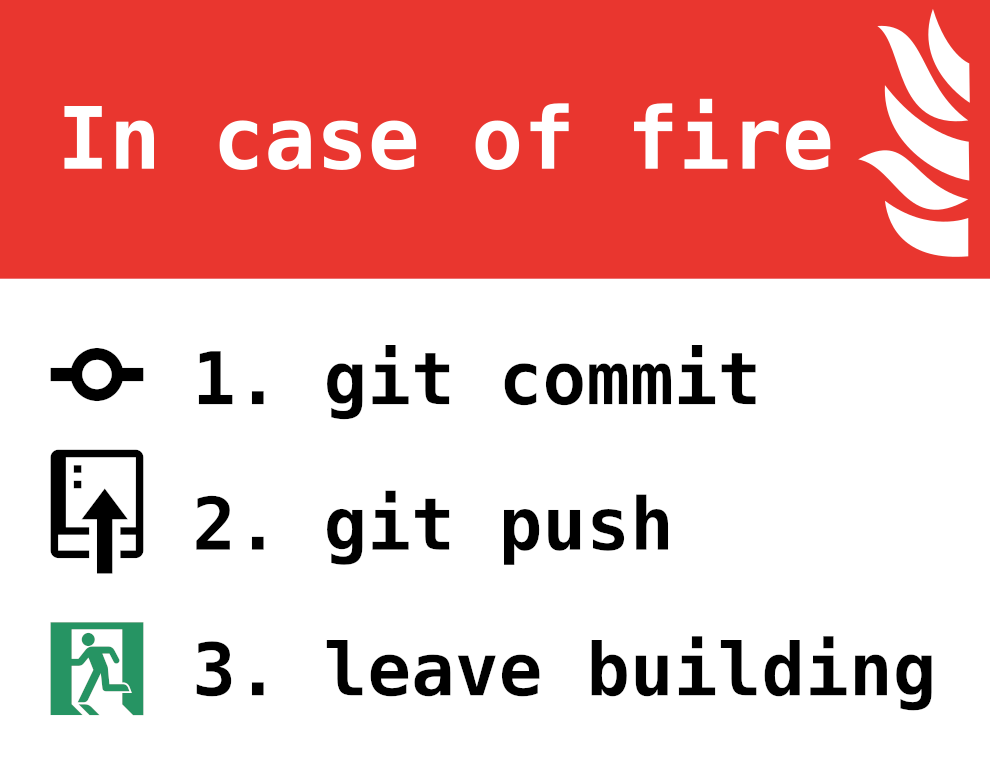
git commit,
git push
Whilst humorous its not the best advice as there are problems with this approach. You can however, as noted in the linked blog, set an alias for this which makes it quick and easy to save your changes.
.gitignore
The .gitignore
file does exactly what you might expect it to, it contains lists of
directories and files that should be ignored by Git. To save having to
write out the path to each and every file the format accepts patterns.
This file, like many others uses # as a comment, to use a
# in a file name you therefore need to escape it with the
\ slash. A * matches anything but slashes and
leading/trailing ** match all directories (leading) or
everything within a directory (trailing). For more details refer to Git Ignore
Patterns.
It is often sensible to ensure data files are not included in your
repository. What these files might be depends on what work you are
doing. Common files to exclude are .csv for text files
.RData for files from R and .pkl are the
Python pickles. Thus to exclude all .csv files you would
add…
Just as you can exclude files you can also ignore directories and a
common one you may wish to ignore is the .DS_Store
directory that Mac OSX automatically generates in most directories. The
ignore pattern for that includes a trailing slash.
GitHub has a useful feature when you create a repository to use
template .gitignore files for specific languages, but if
you missed out this step you can always use the .gitignore
generator to generate a list of files to exclude and add the results
to an existing .gitignore.
Remember to switch to GitHub and go through the process of creating a new repository to show where the option to select a template can be found.
The .gitignore file is part of the repository and should
itself be version controlled, this means that its rules are applied
consistently across anyone who works on the project or a fork of it
(since forks may end up making contributions up-stream). You therefore
have to remember to stage and commit changes to the file just as you
would other files in the repository.
Challenge 3
In your pairs work together to exclude all files with the
extension, .RData, .csv and .pkl
and the .DS_Store/ directory from being added to
repositories by editing and adding changes to your global
.gitignore file.
NB The wildcard symbol * is required to
ensure any file, no matter what comes before the extension is
ignored, e.g. *.csv.
Update the global .gitignore
The following lines added to ~/.gitignore /
~/.config/git/ignore / ~/Library/Preferences/
/ C:\Users\<username>\.gitconfig will ignore the
directory and files.
OUTPUT
.DS_Store/
*.csv
*.pkl
*.RData
Stage and commit the changes to .gitignore and push to
GitHub.
Pull requests are created on GitHub.
Cloning Repositories
We’re now going to put all of this together working in your pairs go through cloning a repository and making some changes to the local configuration as well as making a few changes to the repository on GitHub.
Choose Roles, Clone Repository and Install Package
In your pairs you should decide who is to take on each of the two roles. There isn’t much between them in terms of what you will be doing as you are working through the challenges and solutions together but one person needs to be the repository owner and one person needs to be a collaborator.
Follow the instructions below under each section. If you have any questions please do not hesitate to ask.
You both now need to clone the repository locally (not on GitHub).
Click on the Code button at Python
Maths and then the SSH tab. Copy the URL. If you want to
clone the work to ~/work/git/ then in a terminal run the
following commands (be wary of copy and pasting them
<owners_id> needs replacing)
BASH
cd ~/work/git
git clone git@github.com:FAIR2-for-research-software/python-maths
cd python-maths
git fetch origin {divide,multiply,ns-rse/merge-conflict}
Edit .git/config (Both)
Both users should now edit the
.git/config file and modify line 7 where the
url of the origin is defined and replace
ns-rse with the GitHub username of the person who will be
the Repository Owner. For example if the repository
owner uses the alice_and_bob username on GitHub it should
read.
BASH
 [remote "origin"]
     url = git@github.com:alice_and_bob/python-maths.git
     fetch = +refs/heads/*:refs/remotes/origin/*
This edit changes the origin to be the empty repository
you created under the Repository Owner’s account called
python-maths and pushes the cloned repository there.
Setup GitHub and Force Push (Repository Owners)
NB This step is just for the Repository Owner, the Collaborator should not perform this step.
The repository owner should now create an empty repository called
python-maths using the new
repo, do not add a README.md, license or
.gitignore to the repository, it should be
completely empty.
The Repository Owner can now push the cloned repository to their
account with the following command, the --force is optional
and shouldn’t be required unless you have inadvertently initialised the
repository with additional files.
NB This step is just for the Repository Owner, the Collaborator should not perform this step.
On the python-maths repository you both now have access
to, protect the main branch to require approvals.
- Settings > Branches > Add classic branch protection rule
- Enter
mainunder Branch name pattern - Check the boxes Require a pull request before merging and Require approvals
- Prevent the repository owner from bypassing the rules by checking Do not allow bypassing the above settings.
- Save the changes using the button at the bottom of the page.
NB This step is just for the Repository Owner, the Collaborator should not perform this step.
The Repository owner should now invite their collaborator to work on the repository.
- Navigate to Settings > Collaborators
- Click on Add People and enter the GitHub username of your collaborator.
The Collaborator should receive an email invitation to collaborate and should accept it.
Update Metadata
If desired you can between you update the Metadata in
pyproject.toml. It is important to have accurate Metadata
in this file because if you ever publish your package to Python Package Index (PyPI) it will be
used.
To update the metadata create a branch and update lines 12 and 13 with your names and email addresses. Push the changes, create a pull request and merge the changes.
The term “forge” refers to a web-based collaborative software platform. GitHub and GitLab are perhaps the most well known but there are many others including BitBucket, Codeberg, and ForgeJo and SourceHut.↩︎
Forges such as GitHub, GitLab and Codeberg are not essential for using Git to version control a distributed project. In fact the Linux kernel where Git was first developed and used still uses email lists to share and update changes to the code base (although they are mirrored on GitHub).↩︎